Club Assistant

Just ask, and
club tasks get done.

Check the schedule and attendance. Register matches and training sessions. Draft announcements and attendance reminders. Ask in text or by voice, right on your club's screen.

Register a friendly match this Saturday at 10:00 at the city ground

AssistantRegister a match. Check the date, time and venue before you press.
Register

Enter 2-1 as the result of the most recent match

Training plans, match entries, attendance reminders. Each one is small, but going back and forth between screens eats the whole evening. Ask once, and the groundwork is done in one go.

01 — ASK

This week's schedule and attendance,
back as a table.

Show this week's schedule and attendance

Name a period or a team, and it shows the schedule and how many have answered, as a table on screen. It only looks things up, so nothing is changed.
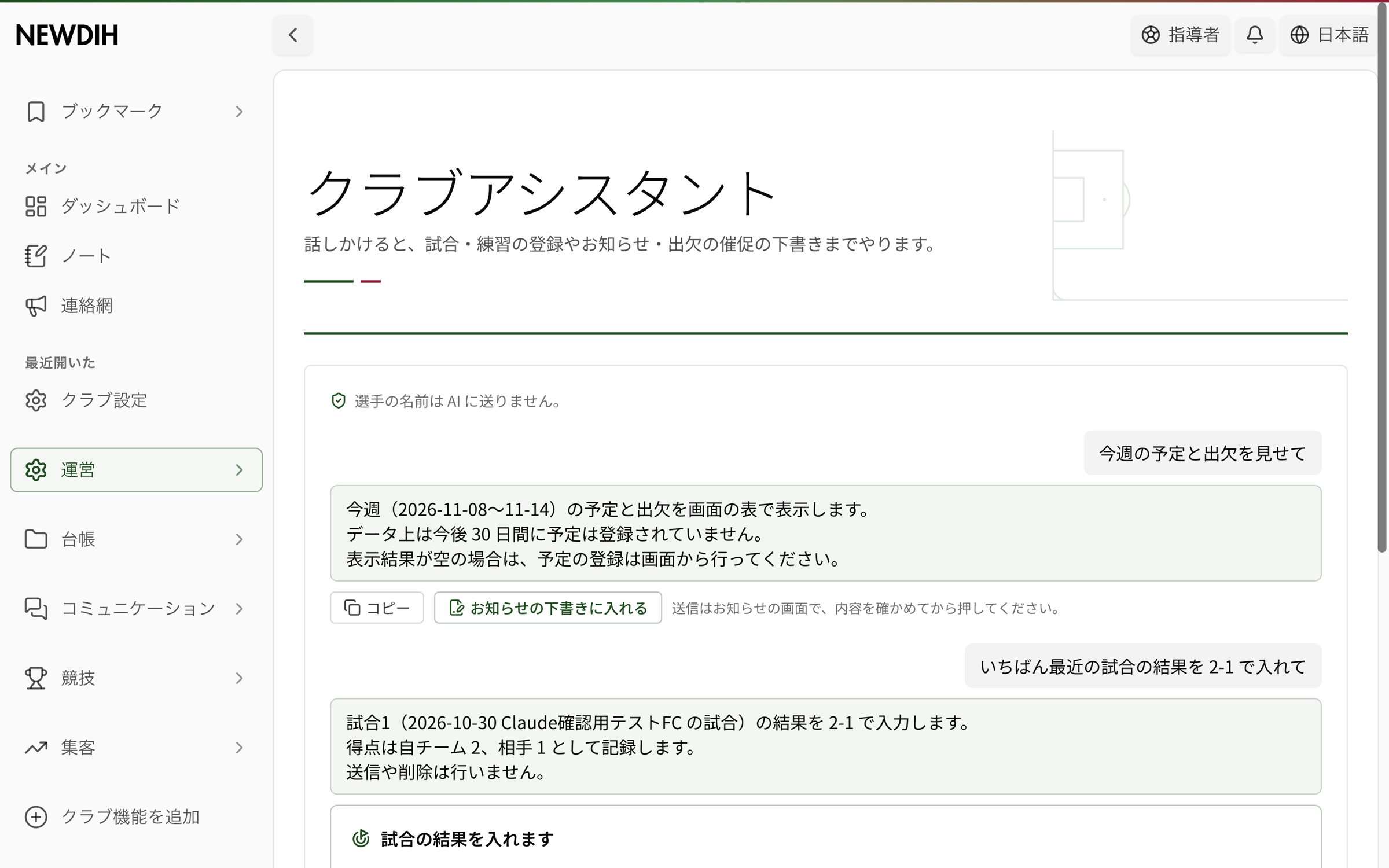
NEWDIH APP Club Assistant actual screen (this week's schedule and attendance returned as a table)
Actual screen (test club)

02 — DO

Registering: nothing happens
until you press the button.

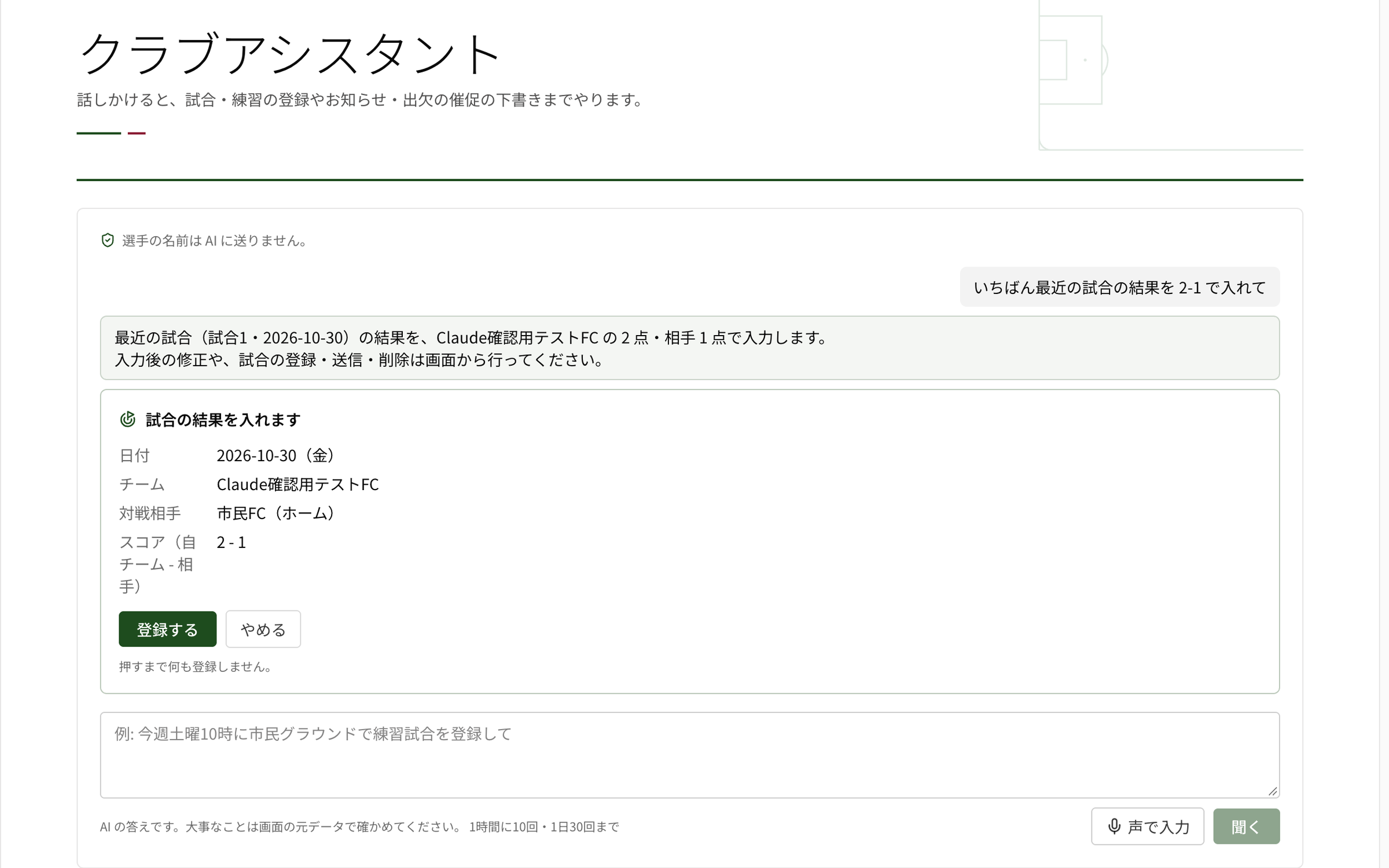
Enter 2-1 as the result of the most recent match

What you ask for first appears as a card. Check the date, opponent and score, and only when you press “Register” does it go into the club's records. If it's wrong, press “Cancel” and that's it.

  • Registering matches and friendlies
  • Adding training sessions to the calendar
  • Training plans using the club's drills
  • Results (scores) of finished matches
NEWDIH APP Club Assistant actual screen (confirmation card before entering a match result)
Actual screen (test club, nothing registered)

03 — DRAFT

Announcements stop at a draft.
You're the one who sends.

Write a reminder for those who haven't answered for Sunday

It drafts the text of contact-network announcements and attendance reminders. The assistant does not send them. Check the content on the announcement screen, then send it yourself.

AssistantI've drafted an attendance reminder. You send it yourself from the announcement screen after checking it.

04 — ACCESS

Who can use it
is up to the owner.

At first, only the club owner can use it. Turn on “Coaches can use the Club Assistant” in club settings, and coaches in the club can use it too.

Owner

Everything: look up, register, training plans, match results and drafts.

Coaches (only when turned on)

Look up, register matches, match results and drafts. It works only within the permissions they already have.

Frequently Asked Questions

Q01Are players' names sent to the AI?

No. The Club Assistant works without passing players' names to the AI.

Q02Does it register things the moment I ask?

No. A confirmation card appears first, and it goes into the records only when you press “Register”. Announcements and reminders stop at a draft and are not sent.

Q03Can I ask by voice?

Yes. Use “Speak” in the input box to talk to it.

Q04Can I use it as much as I like?

There is a limit on uses per hour and per day. The limit is shown on screen.

Q05Can the answers be wrong?

They are AI answers, so they can be wrong. For anything important, check the original schedule or attendance screen.

Time spent hunting for screens, back to training.

The Club Assistant is available from your club's screen in NEWDIH APP.