NEWDIH CLUB FINANCE
CASH BOOK

Collections, and the books, perfectly in sync.

Collecting dues in envelopes. Chasing down unpaid families. A cash book in Excel. The year-end financial report. Club money is the job that demands the most care and has always had the fewest tools.
NEWDIH turns everything — from creating invoices to marking paid, reminders, online payments, bookkeeping, and the year-end report — into a single flow. Payments post to the books automatically, so there are no more nights spent chasing numbers that don't add up.

Signing up is free. All you need is an email address.

The real NEWDIH Fees & Dues screen. Total billed, paid, and unpaid for the target month are listed side by side, and each player's billing ledger shows a paid status (bank transfer or online payment).
The real Fees & Dues screen. Choose a month and tap "Generate this month's invoices," and the billing ledger is created for everyone.
p.
01

Billing, one tap a month.

Set up a fee plan once, and after that it's just tapping "Generate this month's invoices" every month. The billing ledger lines up for every assigned player, each with that month's due date.

Billing cycle
MonthlyAnnualOne-time
Monthly dues, annual fees, and one-off charges like training camp costs — all land on the same ledger.
Payment due date
Set a due date, like "by the 10th of every month." Once the date passes, unpaid entries automatically turn into "overdue" on the ledger.
Per-player assignment
Assign a plan to a player and they become subject to billing. Each assignment has a start and end month, so mid-season joins and departures are billed correctly, month by month.
Individual amounts
Set a different amount for specific players — for a sibling discount, say.
Waive & cancel
WaivedCancelled
For a month you're not collecting — an injury or a leave of absence — mark it "Waived." Created an invoice by mistake? Mark it "Cancelled." Either way, you can leave a note with the reason.
p.
02

Who's paid, and who hasn't.
Clear at a glance, without ruffling feathers.

Filter the ledger by "unpaid, paid, overdue, waived, cancelled." Receive cash, and mark it as paid on the spot with one tap. For families who haven't paid, the app sends the reminder for you.

28
Paid
11
Unpaid
3
Overdue
01
One-tap mark as paid
Choose the payment method — cash, bank transfer, or other — and mark it as paid. Made a mistake? "Revert to unpaid" takes it back. That reversal is recorded in the books as a reversing entry too, so the history never disappears.
02
Send a payment reminder to everyone unpaid
Select the unpaid players and tap "Payment reminder," and it arrives as an in-app and push notification. It frees the club owner from the awkwardness of naming names in a LINE group.
03
Never lose track across months
The ledger is organized by month. Last month's unpaid entries stay on last month's ledger, so you never lose track of whether you've billed someone.
NEWDIH FC — July 2026 Dues
Total billed (42 players)¥252,000
Paid (28 players)¥168,000
Kai MiuraOnline payment ✓
Haruto UenoBank transfer ✓
Unpaid (14 players)¥84,000
Payment reminderIn-app + push
Balance−¥84,000
Done
p.
03

Put an end to the collection envelope.

Turn on online payments, and parents can pay the invoice they receive with a card from their phone. The moment payment goes through, the ledger switches to "Paid" and it's posted to the books automatically. No more month-ends spent counting cash.

01
Parents, done entirely on their phone
A payment link is issued for every invoice, and parents just pay by card. No need to send cash in on collection day.
02
Marking paid and posting the books, both automatic
The moment payment completes, the ledger becomes "Paid" and it's automatically posted to Bookkeeping as fee income. Double-counting is prevented by design, so the same payment never appears twice.
03
Choose who covers the payment processing fee
Decide, plan by plan, whether the club covers the card processing fee or it's added on top for parents to pay.
04
Refunds, tracked by the books too
Issue a refund, and a reversing entry is added to the books automatically. You'll never get the mismatch of "I refunded it, but the books still show it as paid."
05
Works fine even mixed with cash payers
Families who pay online and families who pay cash both land on the same ledger and the same books, mixed together. You don't need to switch everyone over at once.
p.
04

The books keep themselves.

Fee payments are posted to the books automatically. All that's left is entering things like ground fees and equipment costs, and the club's cash book builds itself. Just pick a category and type in the amount.

The real Bookkeeping screen. A summary of total income, total expenses, and net balance, with entries for fees, venue fees, sponsorships, and more listed in date order — each row has a cancel (reversing entry) button.
Income categories
FeesMerchandise salesSponsorshipDonationsGrantsOther
Expense categories
Equipment & gearVenue feesTravel & transportationReferee feesUniformsOther
What's posted automatically
Marking dues as paid, online payments, and refunds. Each entry stays linked back to the invoice it came from.
How cancellation works
Cancelling an entry isn't a "delete" — it's a reversing entry. Even looking back later, you can trace what was cancelled and when.
p.
05

General-meeting materials,
ready the moment you pick a date range.

Set a date range in the Budget Report, and it tallies the breakdown by category and the month-by-month trend. Instead of staring down a pile of receipts at year-end, your day-to-day books become the year-end statement as they are.
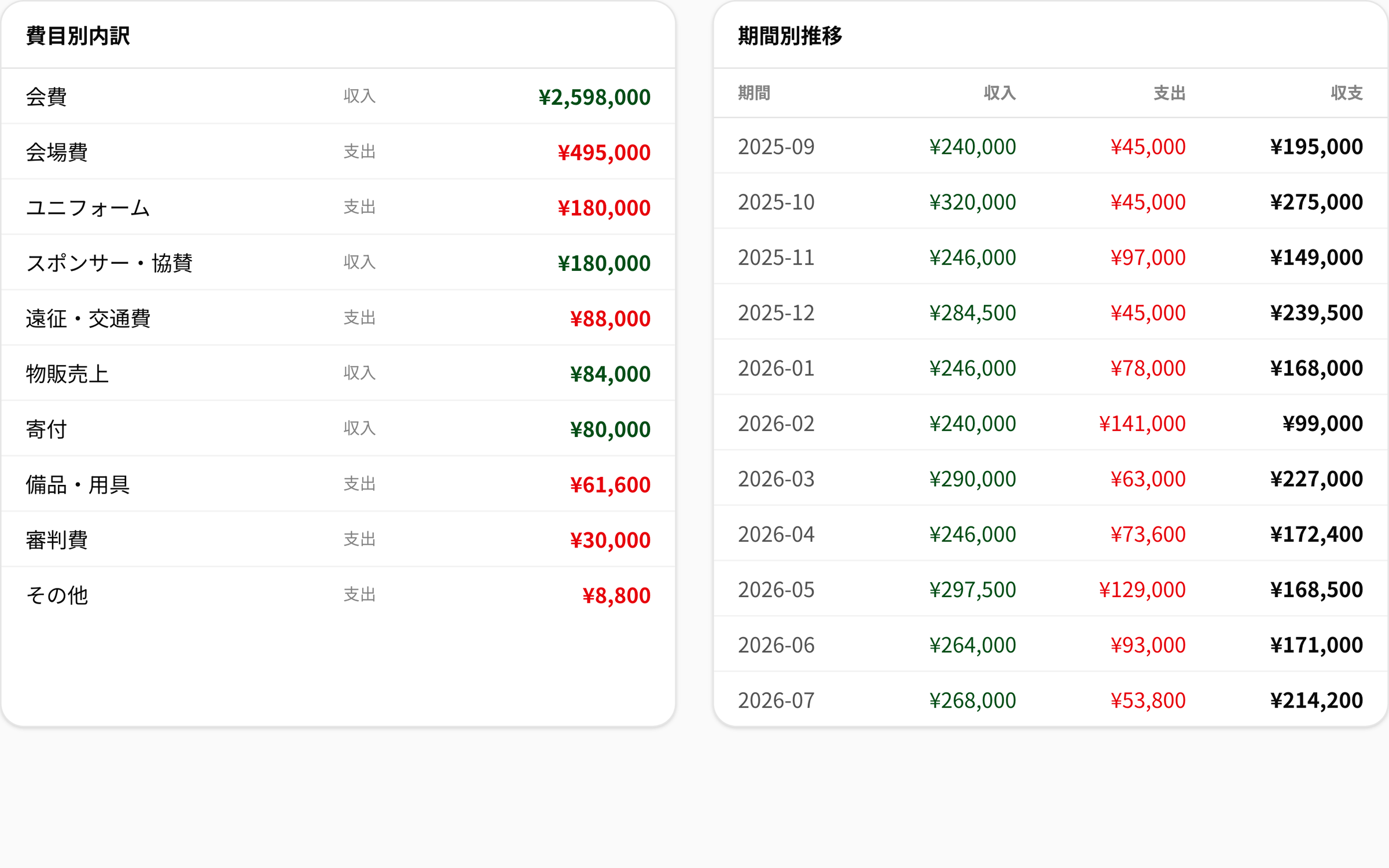
The real Budget Report screen. A breakdown by category — fees, venue fees, sponsorships, and more — alongside a table showing the month-by-month trend in income, expenses, and net balance.

Numbers only matter if you can explain them.

"How much came in from fees, how much went out on venue fees." What gets asked at the parents' general meeting is pretty much the same every year. With a category breakdown and period trend on hand, that question takes ten seconds to answer.

The same report works for closing out a month and for the year-end statement.

Total income¥1,075,500
Total expenses¥349,400

▲ Figures on screen are from a demo club.

p.
06

Only the club owner touches the money.

Running the roster and surveys can be delegated to members, but fees and accounting are, by design, restricted to the club owner alone. It's a deliberate inconvenience, so you never end up with "someone marked something as paid and I didn't notice."

Owner only
Fees & books operations
Delegable
Roster, surveys, and other operations
History
Cancellations stay as reversing entries
p.
07

Three steps, starting this month.

STEP 01
Create a fee plan
Set the amount, cycle, and due date — like "monthly dues of ¥X, due by the 10th every month."
STEP 02
Assign it to players
Choose which players to bill. You can also set individual amounts here, like a sibling discount.
STEP 03
Generate this month's invoices
One tap lines up the ledger for everyone. All that's left is marking payments as paid. The books follow along automatically.
p.
08

Frequently Asked Questions

Yes. Online payment is optional. Even if you just receive cash or bank transfers and mark them as paid on the ledger with one tap, visibility into payment status and automatic bookkeeping work exactly the same way.

Managing the ledger is done entirely on the club's side. Reminder in-app and push notifications are delivered when the player's account is linked.

Because a plan assignment has a start and end month, only the months a player was enrolled get billed. For a month on leave, mark it "Waived" and you can stop collecting while keeping the record intact.

For safety, fees and accounting operations are restricted to the club owner alone. Operational work like the roster and surveys can be delegated to members.

Signing up is free. Club operation features, including fees and accounting, can be added individually from "Module Management" in the app as you need them.

NEWDIH CLUB FINANCE

From this month's collections,
the books start adding up.

Signing up is free. Start by creating just one fee plan.