NEWDIH MATCH MANAGEMENT
RECORD SHEET

Turn 90 minutes into a single record.

Create the match. Record all 90 minutes from kickoff, live. When it's over, print it, share the photos, and add it to the club's numbers.
Matches that used to scatter across paper binders, whiteboards, and camera rolls now connect in one place.

Signing up is free. All you need is an email address.

NEWDIH's record sheet mode. A real screen with the kick-off clock, score, and the lineup and shots record fields laid out on a single sheet.
The real record sheet mode screen. Tap the kick-off clock in the top left, and every record after that gets its minute filled in automatically.
Section
01

First, create the match.

You can register with just the opponent and date. Add the weather and pitch condition too, and later you'll be able to recall exactly what that day was like.

Team / Match date
Choose from the teams in your club (like U-15), then set the match date.
Opponent
Free text entry — you can record a match even if the opposing club doesn't use NEWDIH.
Home / Away
HomeAway
Venue
Choose from your registered list of venues.
Status
PlanningCompletedReviewed
Before the match it's "Planning." Enter the result and it becomes "Completed." Finish the review and it becomes "Reviewed."
Weather
SunnyCloudyRainyWindy
Pitch condition
GoodWetDryPoor
Coaches in charge
Assign as many coaches as you need.
Notes (3 types)
Keep "Opponent analysis," "Pre-match plan," and "Post-match review" as separate notes.Their left side is strongso pre-match scouting notes like that never get mixed up with the post-match reflection.

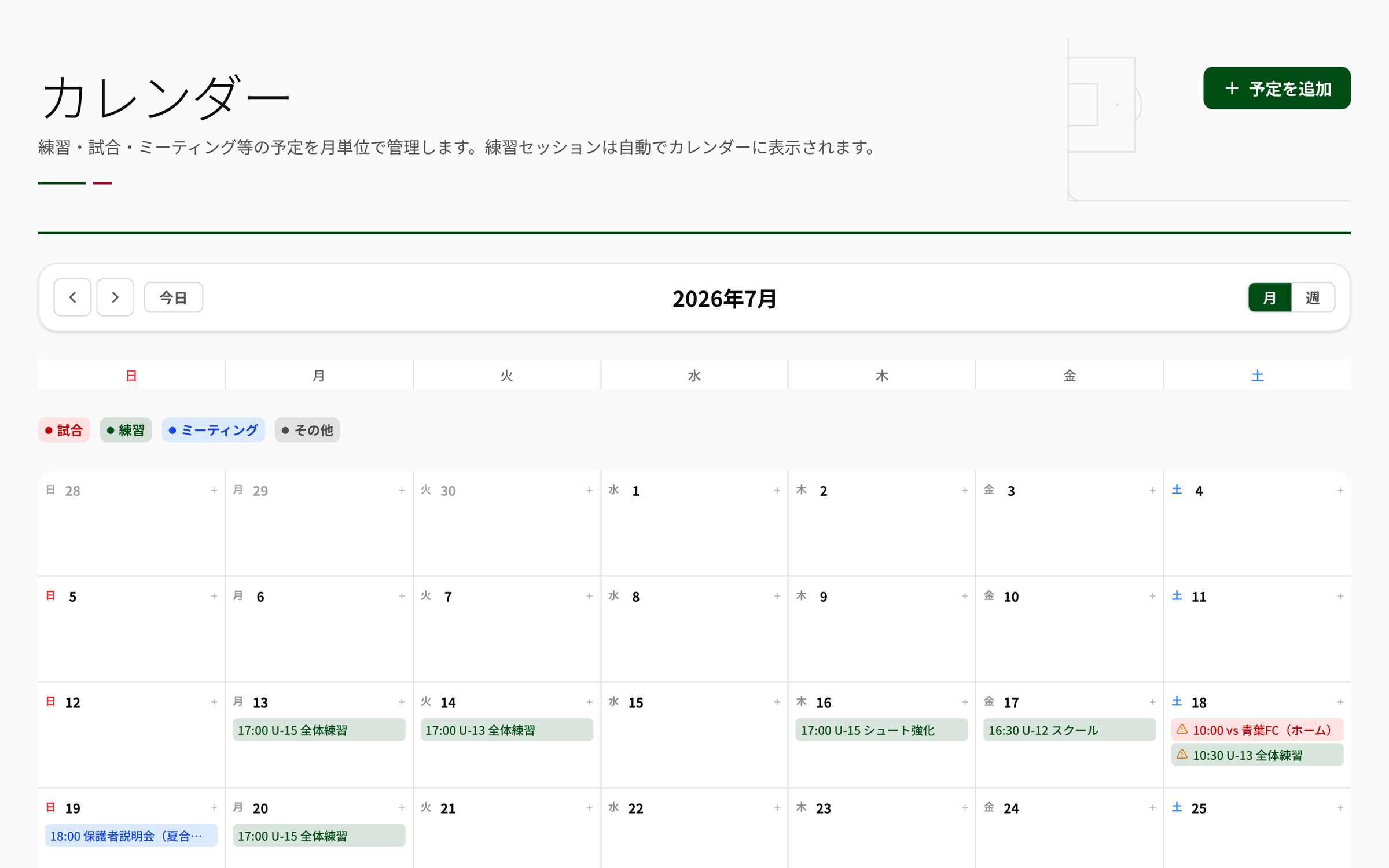
Register it, and it lines up on the calendar automatically.

Just register the match, and the same event appears on the club calendar too. Edit it and the calendar follows; delete it and the calendar entry disappears. No double entry.

If an event overlaps with another at the same venue and time, you'll get a warning on the spot. You catch "I thought I'd booked the ground, but it clashed with training" at the moment you register — not on the day.
AUTO SYNC
A real screen of the club calendar. Registered matches line up automatically, and a warning appears for an event that overlaps in time at the same venue.
Section
02

Tap kick-off.
From there, it's just tapping as things happen.

Record sheet mode puts the paper official match sheet onto a single screen exactly as it is. Open an iPad on the bench and tap through what happens. Every entry saves automatically, so there's no save button to go hunting for.

00:00
Kick-off clock
3
1st half / 2nd half / Extra
Automatic
Minute stamp
Saved
Autosave
01
Kick-off clock
Tap "Kick off" and the clock starts running. It supports pause, resume, and reset. Record a shot or a card after that, and the elapsed minute is filled in automatically. Pause it at half-time, and time stops moving.
02
Switch between 1st half, 2nd half, and extra time
Every record carries the period it belongs to. That's why the team totals later break down by 1st half, 2nd half, and extra time.
03
The minute can be fixed later
Forgot to tap the clock? No problem. Minutes can be edited by hand, so it works just as well to enter everything from memory after the match.
04
Saved on the spot
Every tap saves the instant you make it. Close the app mid-match, and reopening it picks up right where you left off.
Section
03

Lineup and shots.

Confirm the starters and substitutes, each with a squad number and position. Numbers are saved as they stood for that match, so even if a number changes next season, past records stay exactly as they were at the time.

A real screen of the lineup and shots record fields. Position, squad number, and player name are listed, with a shot +/- button, an on-target check, and a starter/substitute toggle on each row.
Position
GKDFMFFW
Role
StarterSubstitute
Shots
Tap the + on a player's row , and that's one shot. For shots on target, check "On target" first, then tap.
Row badges
GoalAssistYellowRed
Record it in a different field, and it's added automatically to that player's row. No double entry.
Substitution
Recorded as "who came off, who came on, and in which minute."
Section
04

Check the formation
in 3D.

A top-down diagram is hard to read. NEWDIH shows the record sheet's formation in 3D. By getting close to the angle you'd see from the bench, you can check the lineup the way the pitch actually looks.

A real screen showing the record sheet formation from the The same setup shown from the The same setup shown from the The same setup shown from the
Auto-rotating
The real screen, with the same four angles as the app. Tap a button to switch, and auto-rotation stops. Player-name chips stay level and readable from any angle.
01
Four angles
TopBroadcastBehind goalReverse side
One tap changes your viewpoint. Turn on auto-rotate, and it slowly spins so you can check every direction.
02
17 presets
4-4-24-3-33-5-23-4-34-2-3-13-4-2-13-3-2-24-1-4-14-4-1-14-3-1-24-2-2-25-3-25-4-13-6-13-1-4-24-5-14-1-2-1-2
03
Drag to place players freely
Drag a player anywhere on the pitch you like. Drop one onto another and they swap; tap two players to select them and they swap too. Swapping a bench player with a starter works the same way. On iPad, you can move them with your finger.
04
Positions update automatically
DFMFFW
The pitch is divided into three zones lengthwise, and the lineup table's position is decided automatically from where you place each player. No need to fix the table every time you move someone. GK stays fixed.
05
2D edit and 3D view
On the formation page you open from match details, switch between tabs for "2D edit," where you arrange things carefully on a flat layout, and "3D view," where you check it in three dimensions.
06
Printed flat
When you print to paper, it comes out as a flat top-down diagram, not 3D — so it stays readable once it's handed out.
3D VIEW
Section
05

Goals and assists,
written as one.

A goal in football always comes as a set: who scored, and who set it up. NEWDIH records both in a single action and displays them as one line. The score is calculated automatically from the record, so there's no need to count the points separately.

01
One action: goal + assist
Add the scorer, assist (optional), and minute together. The display, too, is 12' Goal Riku Koike #9 Assist: Ren Kinoshita #7 — all in one line.
02
The score updates automatically
Add a goal and the score goes up by one; remove it and the score goes back down. The record and the score never drift apart.
03
You can record the opponent's goals too
Select "Opponent team" and you can log a conceded goal with its minute too. Built around the reality that you don't always need to track who scored it for the other side.
04
Cards
Caution (yellow)Sending-off (red)
Record the player, minute, and reason. The reason is optional, so you can skip it when things move fast.
A real screen of the scoring timeline, cards, and team stats. Goals and assists line up on a single row each, with the opposing team's goals recorded too.
Section
06

Team totals,
split by half.

"We fell apart in the second half" becomes a number, not just a feeling. Shot counts are totaled automatically from each player's record, so nothing gets counted twice.

Automatic
Shots
CK
Corners
FK
Direct FK / Indirect FK
PK
Penalties
GK
Goal kicks

Each one is recorded across three columns — 1st half, 2nd half, and extra time. Counts go up and down with a button, so you can keep going without lifting your finger off the bench.

When it's over, straight to paper.

Tap "Print," and it comes out as an A4 portrait record sheet. Not a screenshot of the screen — it's rebuilt into a layout that reads well on paper.

Leagues that need a paper submission, moments you want to hand copies to parents, times you need to share with the scorekeeper. Enter it digitally, hand over paper — done in one pass.
A4 PRINT
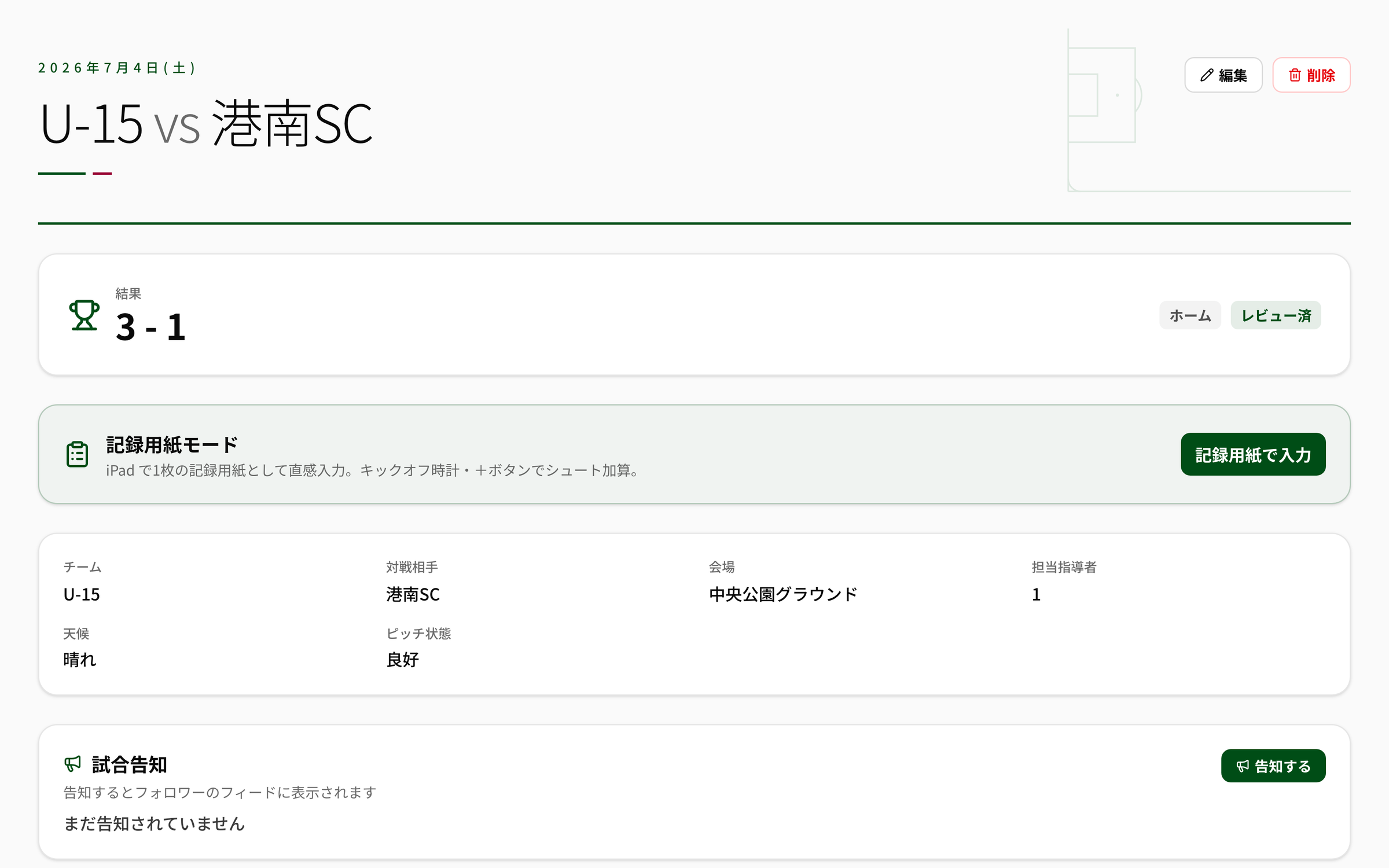
A real screen of match details. A 3-1 result, a link into record sheet mode, and the team, opponent, venue, weather, and pitch condition all listed.
Section
07

After the match,
what's left.

The moment a match ends, everything scatters — photos into parents' camera rolls, results somewhere in a group chat. NEWDIH ties it all back to the match and gathers it in one place.

01
Upload photos
Supports JPEG / PNG / WebP / HEIC / HEIF, up to 50 MB per photo. Upload straight from your iPhone in whatever format it was shot in. Add a caption, and the shot date and time come along with it.
02
Videos can be uploaded too
Up to 1 GB and 30 minutes per video. Progress shows while it uploads. *For deep tactical analysis,Video Analysisthat's what Video Analysis is for — this is for recording and sharing the match itself.
03
Choose the visibility
Whole clubFollowers onlyOnly me
04
When minors appear in it
For youth clubs, how photos are handled is the thing that takes the most care. NEWDIH starts from the assumption that minors appear in every photo, and won't distribute it until a guardian's consent is confirmed. Only coaches can clear that consent — the person who posted it can't release it themselves.
05
Announce a match
Announce it, and the match shows up in the feed of your followers — parents, alumni, and fans. You're free to take it back down too. Followers can contribute photos to an announced match, and anyone can delete what they uploaded themselves.

Match by match, it becomes the club's numbers.

Every goal and assist you record builds up into a club-wide ranking. View it both all-time and for the current month.

Who's scoring, who's setting them up. Just fill in one match's record sheet, and the picture of the season builds itself.
SEASON
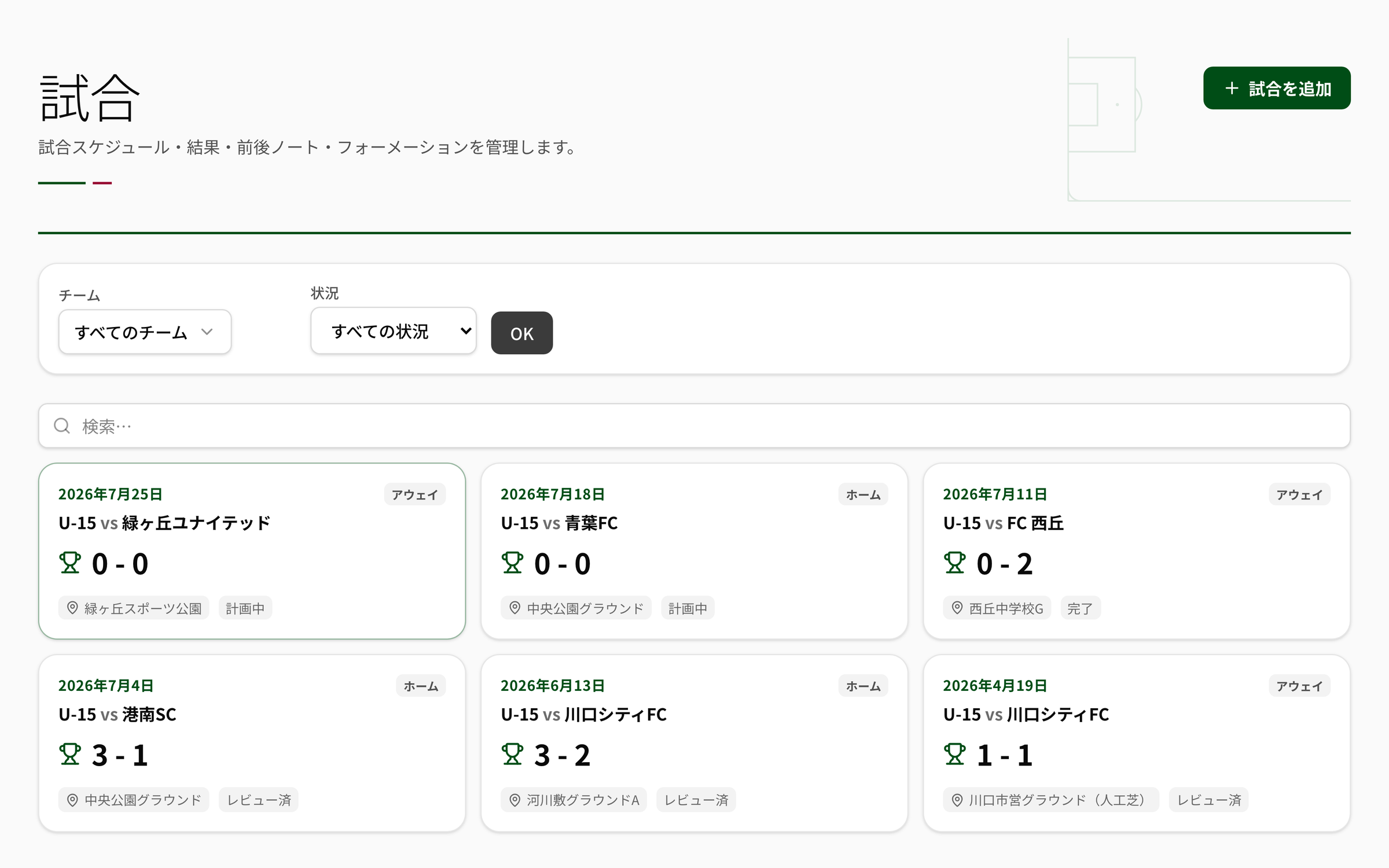
A real screen of the match list. Date, opponent, score, venue, and status, laid out as cards.
Section
08

Who can do what.

Permissions are split around the reality of coaching youth players.

RoleCan doCan't do
Coach
Club member
Create, edit, and delete matches / everything on the record sheet (clock, shots, cards, team stats, lineup, formation) / recording goals and substitutions / tactical board / uploading photos and videos / confirming minor consent / announcing matches Can't touch other clubs' matches
Lifeballer
Parents, alumni, and fans
View announced matches / contribute photos to them / delete what they uploaded themselves Can't edit match records. Can't confirm minor consent either
Section
09

Frequently Asked Questions

Yes. Minutes can be edited by hand, so entering everything from memory after the match works just fine. The kick-off clock is there to make things easier when you can use it — it's not required. It's fine to just enter the result and score and call it done.

No. The opponent is entered as text. There's no need to register the other team's players either. Their goals can be recorded with the minute under "Opponent team."

Yes. Record sheet mode is built around opening an iPad on the bench and filling it in like a single sheet of paper. Rearranging the formation works with a finger drag too.

You can print it out in A4 portrait from "Print." It's not a screenshot of the screen — it comes out in a layout rebuilt to read well on paper.

The squad number and position are saved as they stood at the time of that match. Even if the number changes later, past match record sheets stay exactly as they were back then. Even if a player is removed — for leaving the club, say — the match record itself isn't deleted.

No. Register the match, and the same event is added to the club calendar automatically. Edits and deletions follow through too.

Uploaded photos are treated on the assumption that minors appear in them, and aren't distributed until a guardian's consent is confirmed. Only coaches can confirm that consent.

Signing up is free — all you need is an email address. Start with just one match: fill in a single record sheet and see how it feels.

NEWDIH MATCH MANAGEMENT

Starting with your next match,
fill in one sheet.

Signing up is free. Start by creating just one match — this weekend's.